
Intended Audience: AudioEye Customers with websites that have the AudioEye Script installed, except for Marketplace and Partner/Reseller accounts.
What Service Controls does
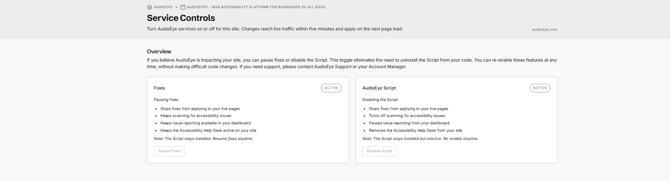
Service Controls lets you turn AudioEye off on a site yourself, with no code changes and no need to uninstall the AudioEye Script. You can choose one of two levels:
- Pause Fixes stops AudioEye fixes from applying to your live pages. Everything else keeps running.
- Disable Script turns off the AudioEye Script on your site. The Script stays installed in your code but does nothing until you turn it back on.
Use Service Controls if you would like to test changes that you are implementing on your website without AudioEye fixes being applied, you think AudioEye is affecting how your site looks or works, or while you investigate a problem on your site. Those options are reversible from the same page at any time.
Before you start
Some important things to know before you change anything:
- It works one site at a time. Changes apply only to the site you are viewing in the dashboard. So, if, for example, you have three sites and want AudioEye off on all of them, repeat the steps on each site.
- It covers all fixes at once. You cannot pick individual fixes to pause from the dashboard. If one specific fix is causing a problem, contact AudioEye Support or your Account Manager and we can look at that fix for you.
- Changes take a few minutes. Your change reaches live traffic within five minutes and takes effect on the next page load. Visitors already on a page will see the change when they refresh or move to another page.
To turn a service off
- In the dashboard, select the site, then go to Site settings > Service Controls.
- Select Pause Fixes or Disable Script.
- Confirm. Note: Disabling the Script asks you to type your site's URL.
To turn a service back on
On the Service Controls page, select Resume Fixes or Restore the Script. If the Script is disabled, restore it before resuming fixes.
FAQ
Will my visitors notice? Yes. Issues AudioEye normally fixes will be visible while services are off, so turn them back on once the problem is resolved.
Can I see who made a change? Yes. The page shows who made the last change and when.
Questions? Contact AudioEye Support.